
BootStrap
BootStrap
本篇整理前端框架 BootStrap 的基础用法:jQuery 的 validate 表单校验插件,以及 Bootstrap 的栅格系统、排版、表格、表单、按钮、图像、图标和模态框等常用组件。
1. validate 插件
1.1 validate 插件概述
为了更好地实现人机交互,可以使用 jQuery 生态中的 validate 插件:在用户填写表单时,快速地对用户填写的数据进行验证,并做出反馈。
Validation 拥有如下特点:
- 内置验证规则:拥有必填、数字、Email、URL 和信用卡号码等 19 类内置验证规则;
- 自定义验证规则:可以很方便地自定义验证规则;
- 简单强大的验证信息提示:默认了验证信息提示,并提供自定义覆盖默认提示信息的功能;
- 实时验证:可以通过 keyup 或 blur 事件触发验证,而不仅仅在表单提交的时候验证。
1.2 validate 插件入门
使用步骤:
- 导入 jQuery 文件;
- 导入 validate.js;
- 导入 messages_zh.js,用于显示中文提示;
- 使用
$("选择器").validate()进行校验; - 在 validate 中编写校验规则。
<!DOCTYPE html>
<html lang="en">
<head>
    <meta charset="UTF-8">
    <title>登录校验</title>
    <style>
        label[class='error'] {
            color: #ff0000;
        }
    </style>
    <script src="js/jquery-3.4.1.min.js"></script>
    <script src="js/jquery.validate.min.js"></script>
    <script src="js/messages_zh.min.js"></script>
    <script>
        $(function () {
            $('#fm').validate({
                rules: {
                    username: {
                        required: true
                    },
                    password: {
                        required: true
                    }
                },
                messages: {
                    username: '请输入用户名',
                    password: '请输入密码'
                }
            });
        })
    </script>
</head>
<body>
    <form id="fm" action="https://www.baidu.com">
        <p>
            <label>账号</label>
            <input type="text" name="username"/>
        </p>
        <p>
            <label>密码</label>
            <input type="password" name="password"/>
        </p>
        <p>
            <button type="submit">登录</button>
        </p>
    </form>
</body>
</html>
1.3 validate 插件校验规则
| 属性 | 描述 |
|---|---|
required: true | 必输字段 |
remote: "test.action" | 使用 ajax 方法调用 check.action 验证输入值 |
email: true | 必须输入正确格式的电子邮件 |
url: true | 必须输入正确格式的网址 |
date: true | 必须输入正确格式的日期。日期校验在 IE6 下会出错,慎用 |
dateISO: true | 必须输入正确格式的日期(ISO),例如 2009-06-23、1998/01/22;只验证格式,不验证有效性 |
number: true | 必须输入合法的数字(负数、小数) |
digits: true | 必须输入整数 |
equalTo: "#field" | 输入值必须和 #field 相同 |
maxlength: 5 | 输入长度最多是 5 的字符串(汉字算一个字符) |
minlength: 10 | 输入长度最小是 10 的字符串(汉字算一个字符) |
rangelength: [5,10] | 输入长度必须介于 5 和 10 之间的字符串(汉字算一个字符) |
range: [5,10] | 输入值必须介于 5 和 10 之间 |
max: 5 | 输入值不能大于 5 |
min: 10 | 输入值不能小于 10 |
综合使用校验规则的注册表单示例:
<!DOCTYPE html>
<html lang="en">
<head>
    <meta charset="UTF-8">
    <title>登录校验</title>
    <style>
        label[class='error'] {
            color: #ff0000;
        }
    </style>
    <script src="js/jquery-3.4.1.min.js"></script>
    <script src="js/jquery.validate.min.js"></script>
    <script src="js/messages_zh.min.js"></script>
    <script>
        $(function () {
            $('#fm').validate({
                rules: {
                    username: {
                        required: true,
                        rangelength: [6, 10]
                    },
                    password: {
                        required: true,
                        rangelength: [6, 10]
                    },
                    password1: {
                        required: true,
                        equalTo: "[name='password']"
                    }
                },
                messages: {
                    username: '用户名长度必须是6~10位的字符',
                    password: '密码长度必须是6~10位的字符',
                    password1: '两次输入的密码必须相同'
                }
            });
        })
    </script>
</head>
<body>
    <form id="fm" action="https://www.baidu.com">
        <p>
            <label>账号</label>
            <input type="text" name="username"/>
        </p>
        <p>
            <label>密码</label>
            <input type="password" name="password"/>
        </p>
        <p>
            <label>重复密码</label>
            <input type="password" name="password1"/>
        </p>
        <p>
            <button type="submit">注册</button>
        </p>
    </form>
</body>
</html>
2. Bootstrap
2.1 Bootstrap 概述
Bootstrap 是一个用于快速开发 Web 应用程序和网站的前端框架,基于 HTML、CSS、JavaScript 构建,由 Twitter 的 Mark Otto 和 Jacob Thornton 开发,2011 年 8 月在 GitHub 上发布的开源产品。
Bootstrap 的特点:
| 特点 | 说明 |
|---|---|
| 移动设备优先 | 自 Bootstrap 3 起,框架包含了贯穿于整个库的移动设备优先的样式 |
| 浏览器支持 | 所有主流浏览器都支持 Bootstrap |
| 容易上手 | 只要具备 HTML 和 CSS 的基础知识,就可以开始学习 Bootstrap |
| 响应式设计 | Bootstrap 的响应式 CSS 能够自适应台式机、平板电脑和手机 |
2.2 入门案例
环境搭建:在网页中引入 Bootstrap 的 css、jQuery、Bootstrap 的 js 三类资源即可使用,其中 jQuery 必须在 Bootstrap js 文件之前引入。中文官网:https://v3.bootcss.com/:
<!DOCTYPE html>
<html lang="en">
<head>
    <meta charset="UTF-8">
    <title>bootstrap起步</title>
    <link rel="stylesheet" href="css/bootstrap.css" />
    <!-- jQuery 必须在 bootstrap 的 js 文件之前 -->
    <script src="js/jquery-3.4.1.min.js"></script>
    <script src="js/bootstrap.js"></script>
</head>
<body>
    <h1>标题1 hello BootStrap</h1>
</body>
</html>
注
框架可以理解为"软件的半成品"。Bootstrap 就是前端的 UI 框架,它已经把常用的页面组件(栅格、表格、按钮、模态框等)封装成了现成的 CSS 类,我们只需要按约定写 class 就能得到统一美观的样式。
2.3 栅格系统
布局就是在什么位置放特定的内容。如何实现布局?使用 div+css 的栅格系统。
在 Bootstrap 中布局需要 container 容器,其他元素都要放在这个容器中:
| 容器 | 效果 |
|---|---|
<div class="container"></div> | 有宽度,居中,两侧留白 |
<div class="container-fluid"></div> | 占据整个页面宽度 |
栅格系统把每行(row)分为 12 列(col-md-N 表示占 N 列):
<!DOCTYPE html>
<html lang="en">
<head>
    <meta charset="UTF-8">
    <title>栅格系统</title>
    <link rel="stylesheet" href="css/bootstrap.css" />
    <!-- jQuery 必须在 bootstrap 的 js 文件之前 -->
    <script src="js/jquery-3.4.1.min.js"></script>
    <script src="js/bootstrap.js"></script>
    <style>
        div[class^='col-md-'] {
            border: 1px solid black;
        }
    </style>
</head>
<body>
    <div class="container">
        <div class="row text-center">
            <div class="col-md-1">1</div>
            <div class="col-md-1">1</div>
            <div class="col-md-1">1</div>
            <div class="col-md-1">1</div>
            <div class="col-md-1">1</div>
            <div class="col-md-1">1</div>
            <div class="col-md-6 text-center">6</div>
        </div>
    </div>
</body>
</html>
栅格系统案例:典型的"头部 + 左侧栏 + 内容区 + 底部"布局:
<!DOCTYPE html>
<html lang="en">
<head>
    <meta charset="UTF-8">
    <title>栅格系统</title>
    <link rel="stylesheet" href="css/bootstrap.css" />
    <!-- jQuery 必须在 bootstrap 的 js 文件之前 -->
    <script src="js/jquery-3.4.1.min.js"></script>
    <script src="js/bootstrap.js"></script>
    <style>
        div[class^='col-md-'] {
            border: 1px solid black;
        }
    </style>
</head>
<body>
    <div class="container-fluid">
        <div class="row">
            <div class="col-md-12" style="height: 100px; background-color: yellow">111</div>
        </div>
        <div class="row">
            <div class="col-md-3" style="height: 500px;">222</div>
            <div class="col-md-9" style="height: 500px;">333</div>
        </div>
        <div class="row">
            <div class="col-md-12" style="height: 100px; background-color: greenyellow;">444</div>
        </div>
    </div>
</body>
</html>
2.4 排版
Bootstrap 提供了对齐类与列表类,直接加在标签的 class 上即可:
<!DOCTYPE html>
<html lang="en">
<head>
    <meta charset="UTF-8">
    <title>排版</title>
    <link rel="stylesheet" href="css/bootstrap.css" />
    <!-- jQuery 必须在 bootstrap 的 js 文件之前 -->
    <script src="js/jquery-3.4.1.min.js"></script>
    <script src="js/bootstrap.js"></script>
</head>
<body>
    <!-- 对齐 -->
    <p class="text-left">hello html</p>
    <p class="text-center">hello css</p>
    <p class="text-right">hello js</p>
    <!-- 列表:list-inline 让列表项水平排列 -->
    <ul class="list-inline">
        <li><a href="">百度</a></li>
        <li><a href="">新浪</a></li>
        <li><a href="">搜狐</a></li>
    </ul>
</body>
</html>
2.5 表格
给 table 加上 table 及修饰类即可获得 Bootstrap 风格的表格,行上还可以加 danger 等状态类:
<!DOCTYPE html>
<html lang="en">
<head>
    <meta charset="UTF-8">
    <title>表格</title>
    <link rel="stylesheet" href="css/bootstrap.css" />
    <!-- jQuery 必须在 bootstrap 的 js 文件之前 -->
    <script src="js/jquery-3.4.1.min.js"></script>
    <script src="js/bootstrap.js"></script>
</head>
<body>
    <table class="table table-striped table-bordered table-hover table-condensed">
        <tr>
            <th>id</th>
            <th>name</th>
            <th>addr</th>
        </tr>
        <tr>
            <td>1</td>
            <td>zs</td>
            <td>qd</td>
        </tr>
        <tr>
            <td>1</td>
            <td>zs</td>
            <td>qd</td>
        </tr>
        <tr class="danger">
            <td>1</td>
            <td>zs</td>
            <td>qd</td>
        </tr>
    </table>
</body>
</html>
2.6 表单
使用 form-horizontal 水平表单配合栅格,可以让标签与输入框在同一行对齐:
<!DOCTYPE html>
<html lang="en">
<head>
    <meta charset="UTF-8">
    <title>表单</title>
    <link rel="stylesheet" href="css/bootstrap.css" />
    <!-- jQuery 必须在 bootstrap 的 js 文件之前 -->
    <script src="js/jquery-3.4.1.min.js"></script>
    <script src="js/bootstrap.js"></script>
</head>
<body>
    <form class="form-horizontal">
        <div class="form-group">
            <label for="inputEmail3" class="col-sm-2 control-label">Email</label>
            <div class="col-sm-10">
                <input type="email" class="form-control" id="inputEmail3" placeholder="Email" disabled />
            </div>
        </div>
        <div class="form-group">
            <label for="inputPassword3" class="col-sm-2 control-label">Password</label>
            <div class="col-sm-10">
                <input type="password" class="form-control" id="inputPassword3" placeholder="Password">
            </div>
        </div>
        <div class="form-group">
            <div class="col-sm-offset-2 col-sm-10">
                <div class="checkbox">
                    <label>
                        <input type="checkbox"> Remember me
                    </label>
                </div>
            </div>
        </div>
        <div class="form-group">
            <div class="col-sm-offset-2 col-sm-10">
                <button type="submit" class="btn btn-default">Sign in</button>
            </div>
        </div>
    </form>
</body>
</html>
2.7 按钮
按钮通过 btn 基础类加上 btn-default、btn-danger、btn-primary 等样式类控制颜色,通过 btn-xs、btn-lg 等控制大小,超链接也可以做成按钮的外观:
<!DOCTYPE html>
<html lang="en">
<head>
    <meta charset="UTF-8">
    <title>按钮</title>
    <link rel="stylesheet" href="css/bootstrap.css" />
    <!-- jQuery 必须在 bootstrap 的 js 文件之前 -->
    <script src="js/jquery-3.4.1.min.js"></script>
    <script src="js/bootstrap.js"></script>
</head>
<body>
    <button type="button" class="btn btn-default">click</button>
    <button type="button" class="btn btn-danger">删除</button>
    <button type="button" class="btn btn-primary btn-xs">添加</button>
    <br/>
    <a href="https://www.baidu.com" class="btn btn-primary btn-lg">修改</a>
</body>
</html>
2.8 图像
图像通过 img-circle、img-thumbnail、img-rounded 类控制形状:
<!DOCTYPE html>
<html lang="en">
<head>
    <meta charset="UTF-8">
    <title>图像</title>
    <link rel="stylesheet" href="css/bootstrap.css" />
    <!-- jQuery 必须在 bootstrap 的 js 文件之前 -->
    <script src="js/jquery-3.4.1.min.js"></script>
    <script src="js/bootstrap.js"></script>
</head>
<body>
    <img src="img/logo.jpg" style="height: 100px; width: 100px;" class="img-circle" alt="圆形图片" />
    <img src="img/logo.jpg" style="height: 100px; width: 100px;" class="img-thumbnail" alt="带边框图片" />
    <img src="img/logo.jpg" style="height: 100px; width: 100px;" class="img-rounded" alt="圆角图片" />
</body>
</html>
2.9 图标
Bootstrap 内置了 glyphicon 图标库,通过 span 标签加 glyphicon glyphicon-xxx 类使用:
<!DOCTYPE html>
<html lang="en">
<head>
    <meta charset="UTF-8">
    <title>图标</title>
    <link rel="stylesheet" href="css/bootstrap.css" />
    <!-- jQuery 必须在 bootstrap 的 js 文件之前 -->
    <script src="js/jquery-3.4.1.min.js"></script>
    <script src="js/bootstrap.js"></script>
</head>
<body>
    <button type="button" class="btn btn-default"><span class="glyphicon glyphicon-search" aria-hidden="true"></span></button>
    <button type="button" class="btn btn-danger"><span style="margin-right: 5px;">删除</span><span class="glyphicon glyphicon-trash"></span></button>
    <button type="button" class="btn btn-primary btn-xs">添加</button>
</body>
</html>
2.10 模态框
模态框(Modal)是覆盖在父窗体上的子窗体,通过 data-toggle="modal"、data-target="#myModal" 触发显示,data-dismiss="modal" 控制关闭:
<!DOCTYPE html>
<html lang="en">
<head>
<meta charset="UTF-8">
<title>模态框</title>
<link rel="stylesheet" href="css/bootstrap.css" />
<!-- jQuery 必须在 bootstrap 的 js 文件之前 -->
<script src="js/jquery-3.4.1.min.js"></script>
<script src="js/bootstrap.js"></script>
</head>
<body>
<!-- 触发模态框的按钮 -->
<button type="button" class="btn btn-primary btn-lg" data-toggle="modal" data-target="#myModal">
Launch demo modal
</button>
<!-- 模态框本体 -->
<div class="modal fade" id="myModal" tabindex="-1" role="dialog" aria-labelledby="myModalLabel">
<div class="modal-dialog modal-lg" role="document">
<div class="modal-content">
<div class="modal-header">
<button type="button" class="close" data-dismiss="modal" aria-label="Close"><span aria-hidden="true">×</span></button>
<h4 class="modal-title" id="myModalLabel">添加</h4>
</div>
<div class="modal-body">
<form class="form-horizontal">
<div class="form-group">
<label for="inputEmail3" class="col-sm-2 control-label">Email</label>
<div class="col-sm-10">
<input type="email" class="form-control" id="inputEmail3" placeholder="Email" disabled />
</div>
</div>
<div class="form-group">
<label for="inputPassword3" class="col-sm-2 control-label">Password</label>
<div class="col-sm-10">
<input type="password" class="form-control" id="inputPassword3" placeholder="Password">
</div>
</div>
<div class="form-group">
<div class="col-sm-offset-2 col-sm-10">
<div class="checkbox">
<label>
<input type="checkbox"> Remember me
</label>
</div>
</div>
</div>
<div class="form-group">
<div class="col-sm-offset-2 col-sm-10">
<button type="submit" class="btn btn-default">Sign in</button>
</div>
</div>
</form>
</div>
<div class="modal-footer">
<button type="button" class="btn btn-default" data-dismiss="modal">取消</button>
<button type="button" class="btn btn-primary">保存</button>
</div>
</div>
</div>
</div>
</body>
</html>2.11 案例
综合运用栅格、表格、按钮、图标、模态框和分页组件完成的学生管理页面:
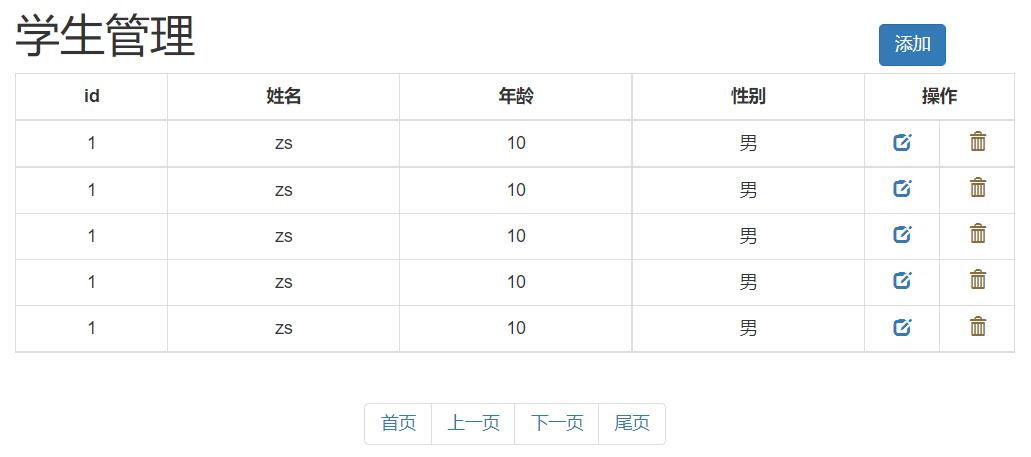
<!DOCTYPE html>
<html lang="en">
<head>
<meta charset="UTF-8">
<title>test</title>
<script src="js/jquery-3.4.1.min.js"></script>
<script src="js/bootstrap.js"></script>
<link rel="stylesheet" href="css/bootstrap.css" />
<style>
.container {
width: 800px;
}
th {
text-align: center;
}
.opt {
width: 60px;
}
</style>
</head>
<body>
<div class="container">
<!-- 添加学生的模态框 -->
<div class="modal fade" id="myModal" tabindex="-1" role="dialog" aria-labelledby="myModalLabel">
<div class="modal-dialog" role="document">
<div class="modal-content">
<div class="modal-header">
<button type="button" class="close" data-dismiss="modal" aria-label="Close"><span aria-hidden="true">×</span></button>
<h4 class="modal-title" id="myModalLabel">添加学生</h4>
</div>
<div class="modal-body">
<form class="form-horizontal">
<div class="form-group">
<label for="inputName" class="col-sm-2 control-label">姓名</label>
<div class="col-sm-10">
<input type="text" class="form-control" id="inputName" placeholder="请输入姓名">
</div>
</div>
<div class="form-group">
<label for="inputAge" class="col-sm-2 control-label">年龄</label>
<div class="col-sm-10">
<input type="number" class="form-control" id="inputAge" placeholder="请输入年龄">
</div>
</div>
<div class="form-group">
<label class="col-sm-2 control-label">性别</label>
<div class="col-sm-10">
<label>
<input type="radio" name="gender" value="male" /> 男
<input type="radio" name="gender" value="female" /> 女
</label>
</div>
</div>
</form>
</div>
<div class="modal-footer">
<button type="button" class="btn btn-default" data-dismiss="modal">关闭</button>
<button type="button" class="btn btn-primary">保存</button>
</div>
</div>
</div>
</div>
<div class="row">
<h1 class="pull-left">学生管理</h1>
<button class="btn btn-primary pull-right" style="margin-top: 30px;" data-toggle="modal" data-target="#myModal">添加学生</button>
</div>
<div class="row">
<table class="table table-bordered table-hover">
<tr>
<th>id</th>
<th>姓名</th>
<th>年龄</th>
<th>性别</th>
<th colspan="2">操作</th>
</tr>
<tr>
<td>1</td>
<td>zs</td>
<td>20</td>
<td>male</td>
<td class="opt text-center">
<a><span class="glyphicon glyphicon-edit" aria-hidden="true"></span></a>
</td>
<td class="opt text-center" >
<a><span class="glyphicon glyphicon-trash" aria-hidden="true"></span></a>
</td>
</tr>
<tr>
<td>2</td>
<td>ls</td>
<td>20</td>
<td>male</td>
<td class="opt text-center">
<a><span class="glyphicon glyphicon-edit" aria-hidden="true"></span></a>
</td>
<td class="opt text-center" >
<a><span class="glyphicon glyphicon-trash" aria-hidden="true"></span></a>
</td>
</tr>
<tr>
<td>3</td>
<td>ww</td>
<td>20</td>
<td>male</td>
<td class="opt text-center">
<a><span class="glyphicon glyphicon-edit" aria-hidden="true"></span></a>
</td>
<td class="opt text-center" >
<a><span class="glyphicon glyphicon-trash" aria-hidden="true"></span></a>
</td>
</tr>
<tr>
<td>4</td>
<td>zl</td>
<td>20</td>
<td>male</td>
<td class="opt text-center">
<a><span class="glyphicon glyphicon-edit" aria-hidden="true"></span></a>
</td>
<td class="opt text-center" >
<a><span class="glyphicon glyphicon-trash" aria-hidden="true"></span></a>
</td>
</tr>
<tr>
<td>5</td>
<td>tom</td>
<td>20</td>
<td>male</td>
<td class="opt text-center">
<a><span class="glyphicon glyphicon-edit" aria-hidden="true"></span></a>
</td>
<td class="opt text-center" >
<a><span class="glyphicon glyphicon-trash" aria-hidden="true"></span></a>
</td>
</tr>
</table>
</div>
<div class="row">
<nav aria-label="Page navigation" class="text-center" style="margin-top: 0px;">
<ul class="pagination">
<li>
<a href="#" aria-label="Previous">
<span aria-hidden="true">«</span>
</a>
</li>
<li><a href="#">1</a></li>
<li><a href="#">2</a></li>
<li><a href="#">3</a></li>
<li><a href="#">4</a></li>
<li><a href="#">5</a></li>
<li>
<a href="#" aria-label="Next">
<span aria-hidden="true">»</span>
</a>
</li>
</ul>
</nav>
</div>
</div>
</body>
</html>3. 本章小结
- validate 是 jQuery 的表单校验插件:引入 jQuery、validate.js、messages_zh.js 三个文件后,用
$("选择器").validate({rules, messages})配置校验规则与提示; - validate 内置了 required、email、number、equalTo、rangelength 等常用规则,支持 keyup/blur 实时校验;
- Bootstrap 是基于 HTML、CSS、JavaScript 的前端 UI 框架,使用前必须先引入 Bootstrap 的 css、jQuery(在前)、Bootstrap 的 js;
- 布局靠栅格系统:
container/container-fluid容器内用row分行,col-md-N指定占据 12 列中的 N 列; - 常用组件都是"加 class 即生效":排版对齐类、
table系列表格类、btn系列按钮类、img-*图像类、glyphicon 图标类; - 模态框通过
data-toggle/data-target打开、data-dismiss关闭,配合表单组件可实现后台管理系统的增删改查交互。